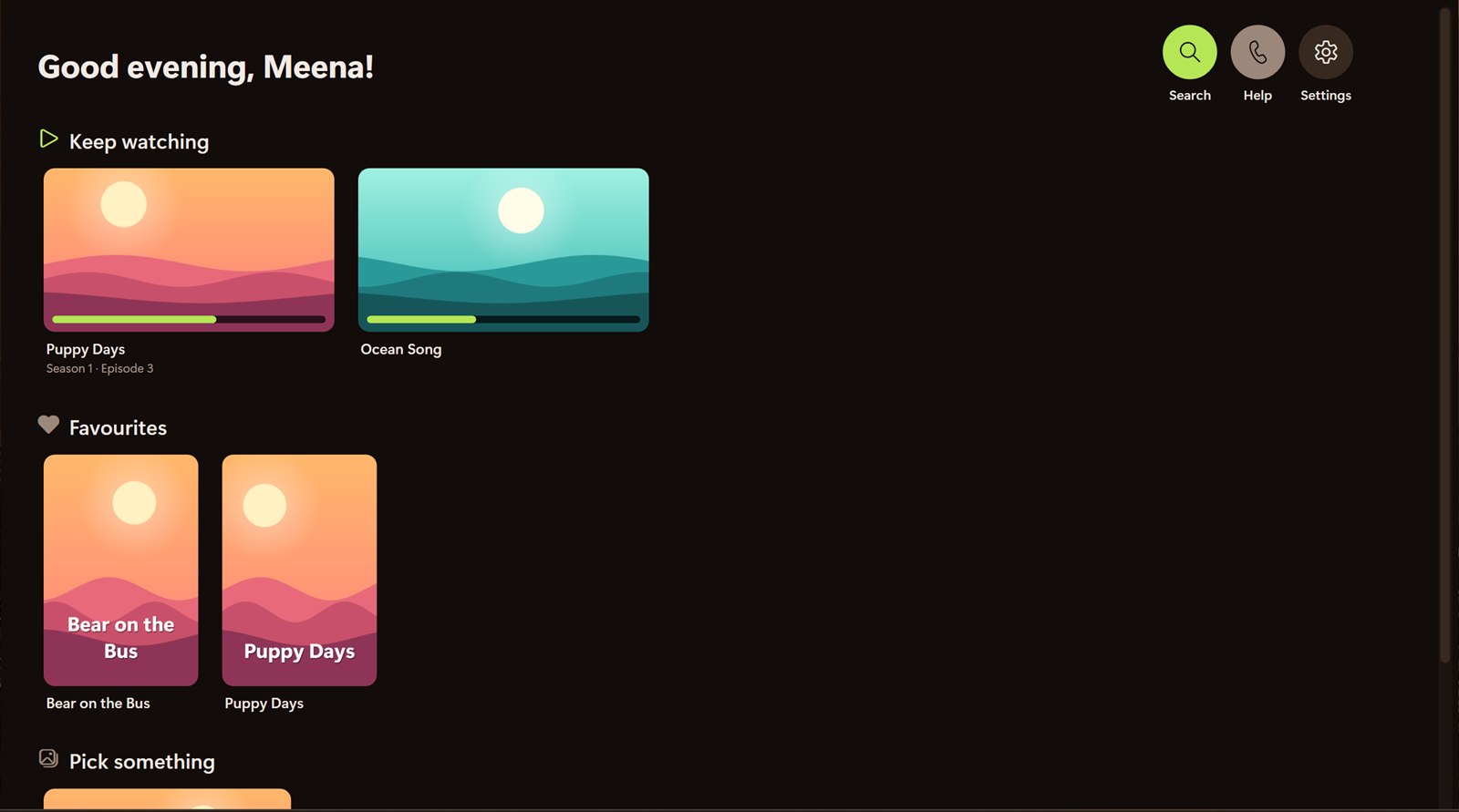
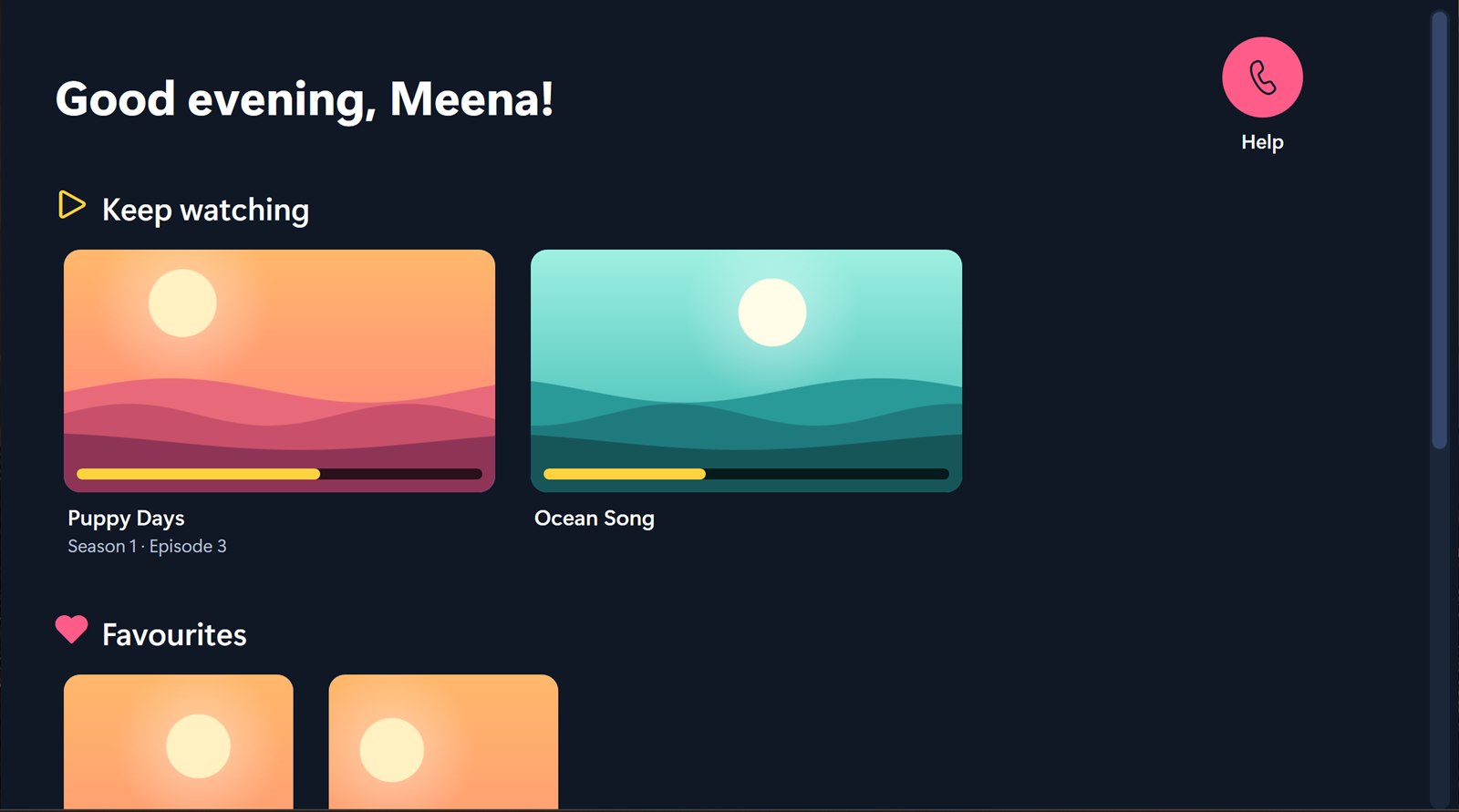
For someone who needs things very simple
- Huge pictures. One tap plays.
- Six bright colour themes (Bright, Candy, Ocean, Jungle, Sunset, Space)
- Help button with faces and phone numbers
- Settings hidden behind a secret corner and PIN
Jellyfin client
A very simple way for the whole family to watch your Jellyfin server on Windows. Big pictures, no logins, nothing to break, and a PIN-protected settings page for the person who looks after it.
Why Thirai
Thirai was built for a family member with Down syndrome, who found the usual Jellyfin apps confusing: sign-in screens, tiny buttons, menus everywhere. In Thirai they tap a big picture and it plays.
Thirai (திரை) is Tamil for the cinema screen. It's what you see when the curtains open.
Three modes
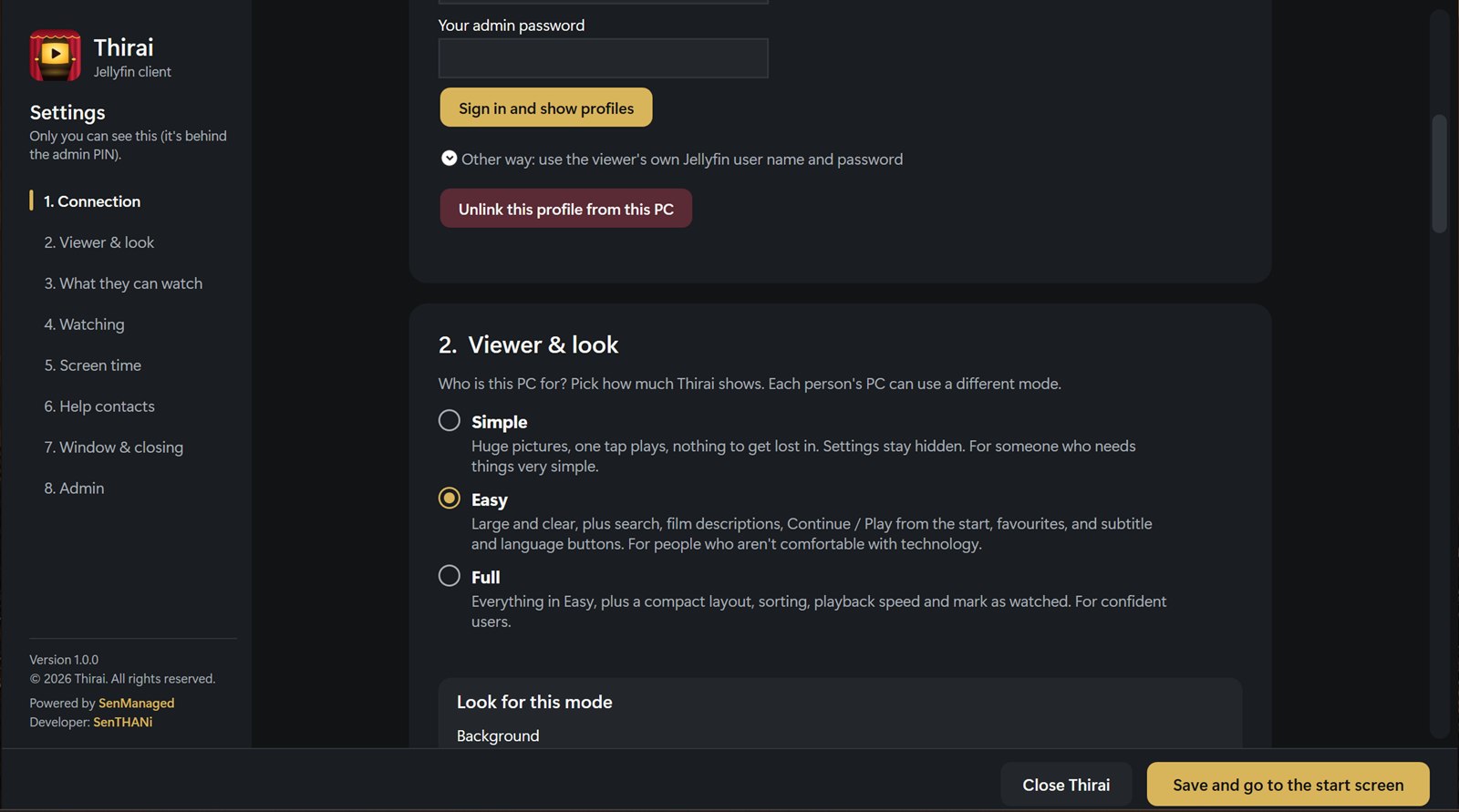
Every PC picks the mode that suits the person using it. Your parents' laptop can be in Easy, your sister's in Simple and yours in Full, all watching the same Jellyfin server.


| Simple | Easy | Full | |
|---|---|---|---|
| Size | Huge (adjustable) | Large (adjustable) | Compact (adjustable) |
| Tap a film | Plays straight away | Details page first | Details page first |
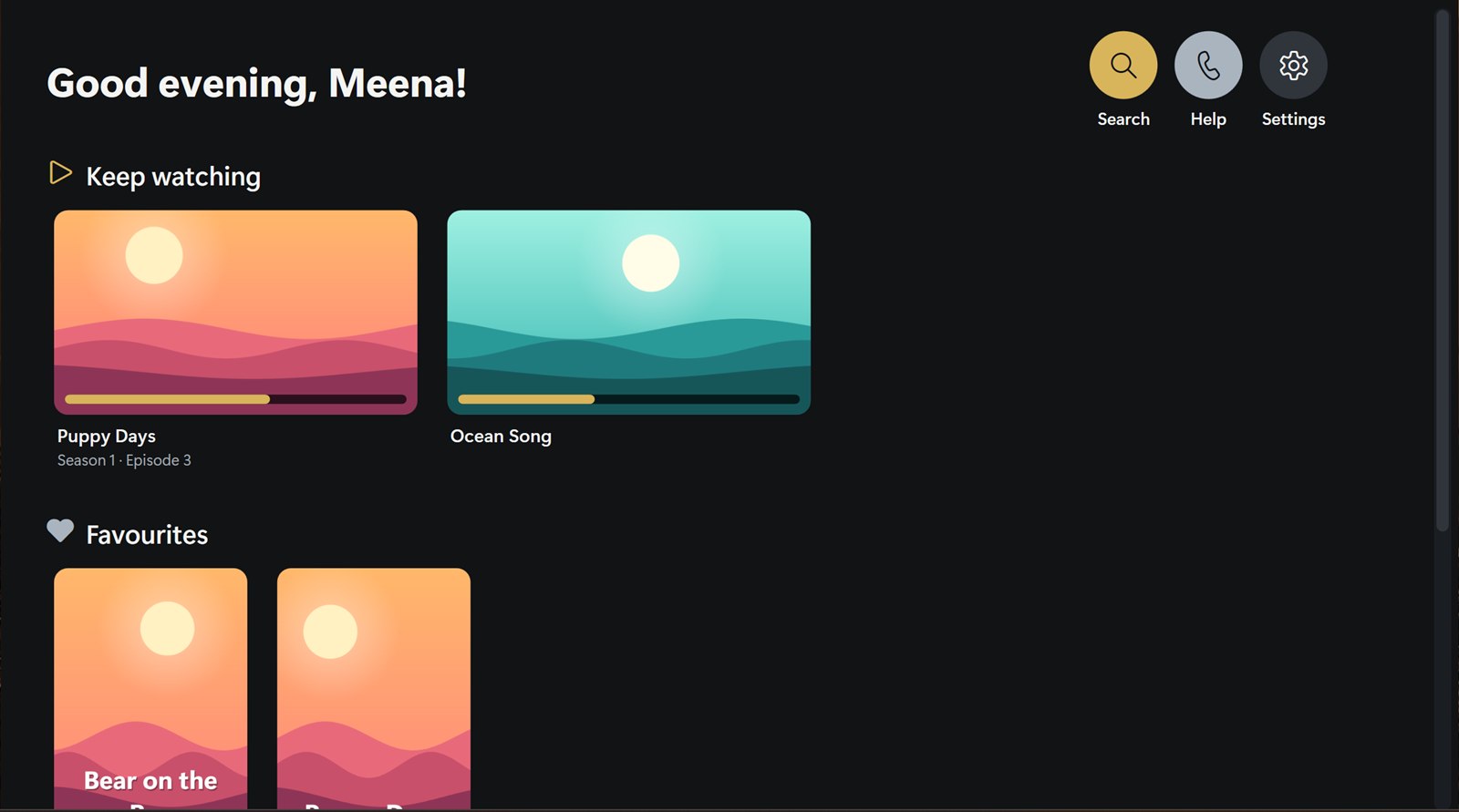
| Search | No | Yes | Yes |
| Favourites | Shown | Add / remove | Add / remove |
| Sorting | No | No | A–Z, Newest, Year |
| Player extras | Subtitles (if allowed) | Subtitles, language | Subtitles, language, speed |
| Mark as watched | No | No | Yes |
| Settings | Hidden corner + PIN | Settings button + PIN | Settings button + PIN |
| Closing | Exit → 👍 / 👎 | Exit → Yes / No | Exit → Yes / No |
| Can be locked open | Yes | Yes | No |
What you get
The viewer never types a user name or password. You link their Jellyfin profile once.
Every button has an icon and a word. A yellow ring shows what's being pointed at.
Shows the faces and phone numbers of the people to call when something's not right.
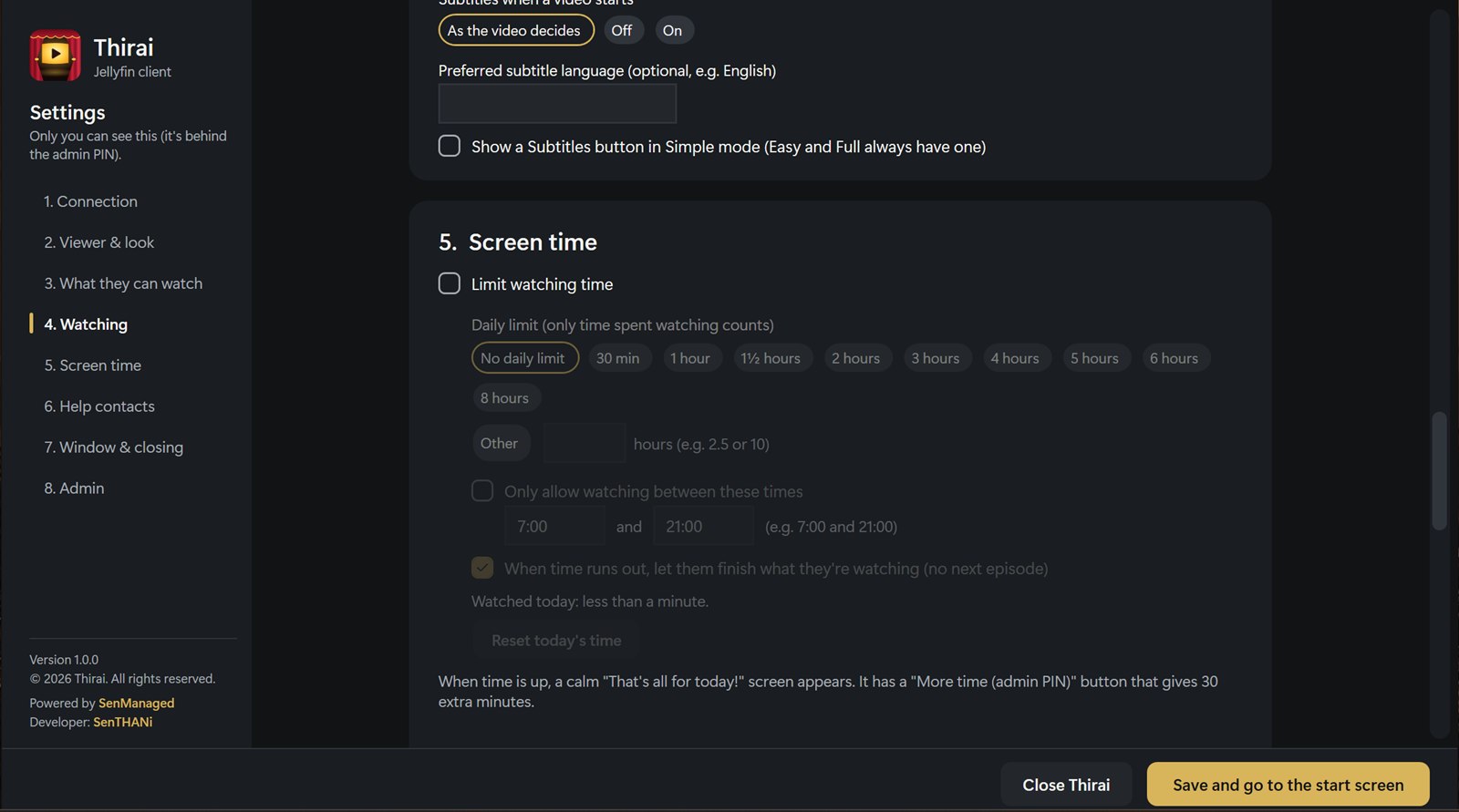
Daily limits (30 minutes to any number of hours), allowed hours like 7:00–21:00, and a gentle "That's all for today!".
On, off or as the video decides, with a preferred language. You decide whether Simple mode gets a Subtitles button.
An Exit button with "Are you sure?", or lock it so only you can close it with your PIN.
Looks the same on a 1080p laptop and a 4K monitor, and you can make everything bigger or smaller.
Built on the VLC video engine, so your server never has to convert video. Resumes where they stopped.
The curtains part and the screen lights up with a "ta-DUM". A tap skips it, and you can turn it off.
No accounts, no cloud, no tracking. Thirai talks only to your own Jellyfin server.
Thirai never deletes or changes your films. If the server is off, they see a friendly "The TV box is sleeping".
Remembers where they stopped and can play the next episode after a 10-second countdown.
Thirai tells you when a new version is out and installs it when you say so, keeping all settings. The viewer in Simple mode is never asked.
Screenshots
Tap a picture to see it bigger. The titles are made-up examples; Thirai shows your own Jellyfin library.
Download
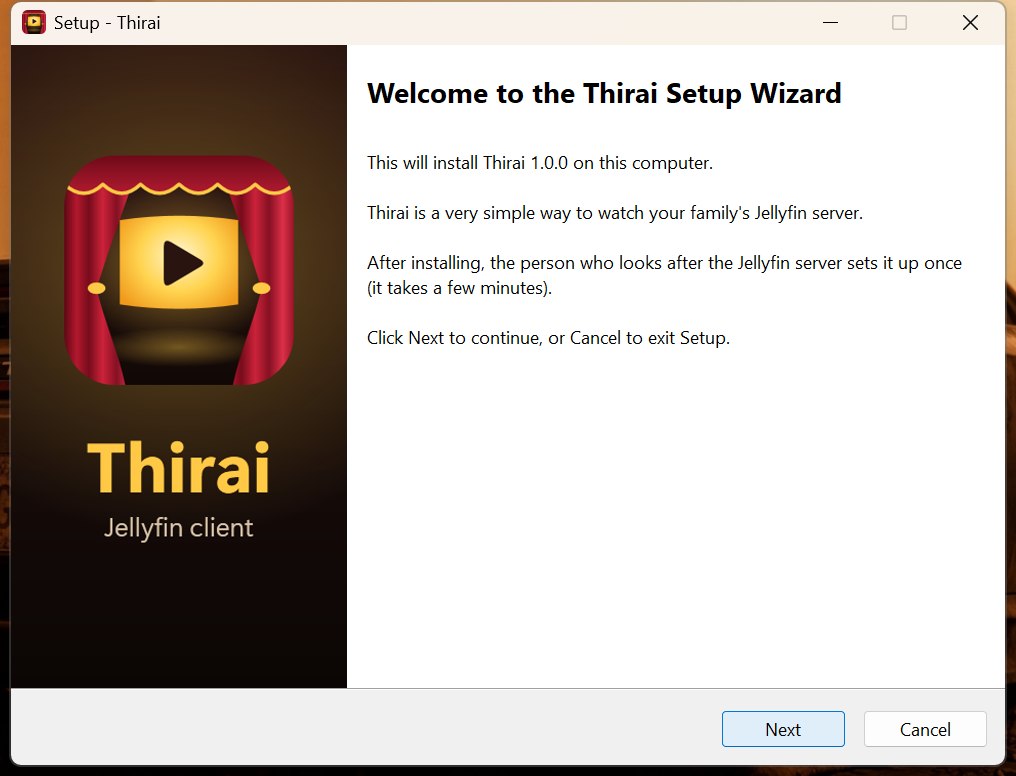
Free, with nothing else to install: everything Thirai needs is included. Version 1.0.2, released .
For most people. Adds Thirai to the Start menu and the desktop, and can be removed like any other app.
Tells you about new versions: when one is out, Thirai offers Install now, and settings are kept. No administrator password needed: Thirai installs for the current Windows account only.
Download installer (63 MB)Nothing is installed. Good for trying Thirai, for a USB stick, or for PCs where you can't install apps. (It doesn't update itself.)
Moving the folder to another PC or Windows account? Open the settings and link the profile again (the saved key only works for the account that made it).
Download portable (99 MB)"Windows protected your PC"? Thirai is new and isn't signed with a paid certificate yet, so Windows SmartScreen may show a blue warning the first time. Click More info, check the app is Thirai-Setup, then click Run anyway.
To be sure your download is complete and unchanged, compare its SHA-256 checksum (shown under each button, also in checksums.sha256). In PowerShell: Get-FileHash .\Thirai-Setup-*.exe
For the admin
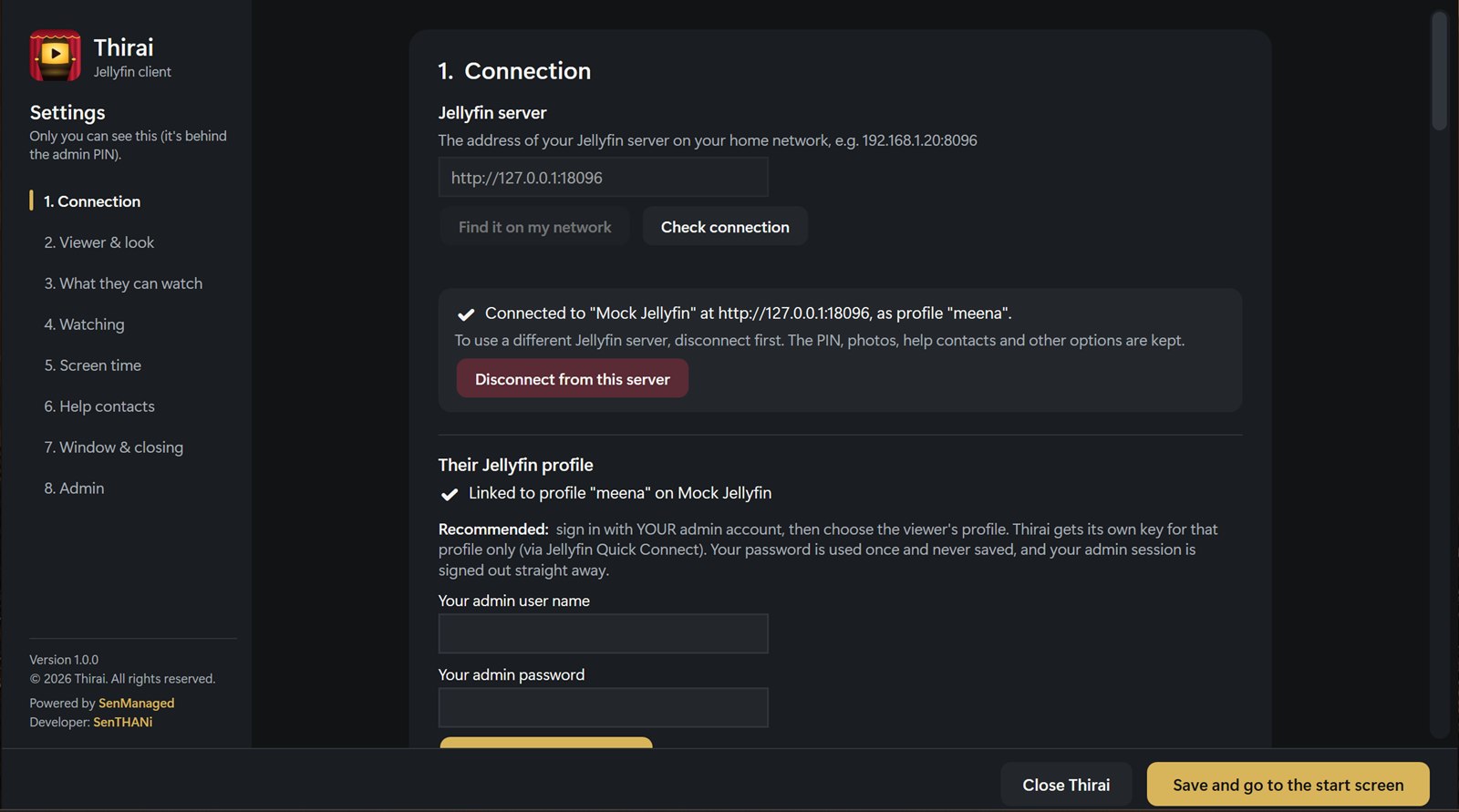
The person who looks after the Jellyfin server (the admin) does this once on each PC, signed in to the viewer's Windows account. The viewer never sees any of it.
The first time Thirai opens, it asks you to choose a PIN (and type it twice). The PIN protects the settings. Five wrong tries lock the PIN pad for a minute.
192.168.1.20:8096, and click Check connection. If Jellyfin runs in Docker or on a NAS the search may find nothing; just type the address.Pick Simple, Easy or Full. Recommended options are filled in for you. Then choose the colours and screen size, the name for "Good evening, ___!", and their photo.
Everything else is optional and can be changed later: libraries and the start screen, watching options, screen time, help contacts, full screen and closing. Click Save and go to the start screen. Done!


Getting back into settings later. Press and hold the top-right corner of Thirai for 3 seconds (just below the title bar when it's in a window; on a trackpad, press the pad down and keep it pressed), or press Ctrl+Shift+A. In Easy and Full there's also a Settings button on the start screen. You'll always need the PIN.
Everyday use
Every page has the same Back and Home buttons in the same place. Esc or Backspace also goes back.
A calm moon and "That's all for today!" (or "It's resting time" outside the allowed hours). Five minutes before, a gentle "5 minutes left today" appears on the video. By default the current film or episode may finish, but no new one starts. The admin can give 30 more minutes with the PIN.
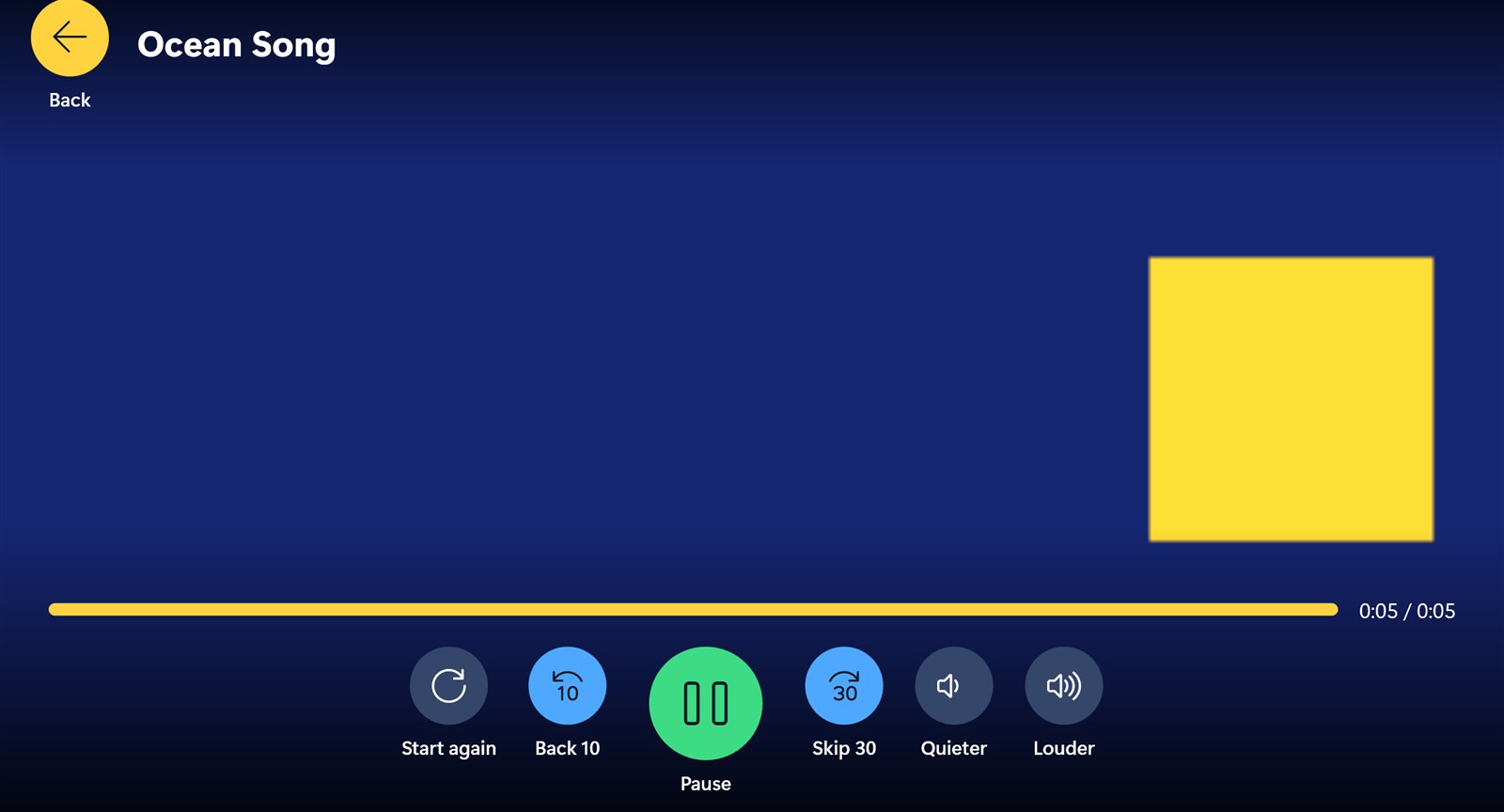
Big buttons with words: Start again, Back 10, Play / Pause, Skip 30, Quieter, Louder. Easy and Full add Subtitles and Language, and Full adds Speed.
Click the video to hide the buttons straight away (like VLC). Click or move the mouse to bring them back. They also hide by themselves after a few seconds.
| Key | What it does |
|---|---|
| Space or the play/pause key | Play / pause |
| ← | Back 10 seconds |
| → | Skip 30 seconds |
| ↑ / ↓ or volume keys | Louder / quieter |
| Esc or Backspace | Stop and go back |
Settings guide
Settings are in eight sections, in the order you'd set things up. Changes take effect when you click Save and go to the start screen.
192.168.1.20:8096; :8096 is added if you leave it out) and click Check connection.
Up to three people, with a name, phone number and photo, shown by the Help button and on the "TV box is sleeping" screen.
Privacy & safety
Thirai uses its own key for the viewer's profile, encrypted for that Windows account. The admin PIN is stored only as a salted hash.
It never deletes or changes your media. It only saves watch progress, favourites and "watched" marks for the viewer's profile.
No accounts, no ads, no analytics. Thirai talks only to the Jellyfin server you choose.
Revoke access any time in Jellyfin: Dashboard → Devices, delete the PC's "Thirai" device.
Help
The network search only finds servers that answer Jellyfin's discovery (servers in Docker or on a NAS often don't). Type the address instead: the server's IP address and port, like 192.168.1.20:8096. You'll find it in Jellyfin under Dashboard → Networking, or on your router's list of devices. Make sure the PC is on the same network as the server.
Thirai can't reach the Jellyfin server. Check the server is switched on and connected, and that the PC is on the home Wi-Fi. Thirai keeps trying and carries on by itself. If the server's address has changed, update it in settings, section 1 (giving the server a fixed IP address on your router prevents this).
%LocalAppData%\Thirai and press Enter (portable version: the Data folder next to Thirai.exe).settings.json and open Thirai again. You'll set it up from the start (photos and contacts need adding again).That's Windows SmartScreen being careful with a new app that isn't signed with a paid certificate. Click More info, then Run anyway. You can check the download hasn't been changed with its SHA-256 checksum (see Install).
An installed Thirai checks this page every few hours and tells you when a new version is out. Nothing installs by itself: in Easy and Full a banner on the start screen offers Install now or Not now; in Simple mode it only shows in Settings → 8. Admin, so the viewer is never asked. Installing keeps all settings, and Thirai opens again by itself.
The portable version doesn't update itself: download the newest one and put it in the same folder (its Data folder is kept).
Windows Settings → Apps → Installed apps → Thirai → Uninstall. You'll be asked whether to also remove Thirai's settings (PIN, server link, photos, contacts); choose No if you'll install it again. For the portable version, just delete the folder.
Thirai plays files directly from the server without converting them, so it depends on your home network. Try a wired connection or move closer to the Wi-Fi router. Very large 4K files need a fast network. If one particular file never plays, check it plays in Jellyfin's own web app.
Thirai shows what the viewer's Jellyfin profile is allowed to see, and only libraries ticked in settings, section 3. Check the profile's Access tab in Jellyfin (or use See ALL libraries on the server in section 3). Music, books and photo libraries aren't shown: Thirai is for films, shows and home videos.
Yes. Install it on each PC and link a profile on each. Every PC has its own mode, look, PIN and screen-time settings. Several PCs can use the same Jellyfin profile.
Thirai is designed for your home network. If your Jellyfin server is reachable from elsewhere (for example through a VPN such as Tailscale), you can enter that address instead.
Thirai is a Windows app (Windows 10 and 11, 64-bit). On other devices, use Jellyfin's own apps.
In %LocalAppData%\Thirai (portable version: the Data folder beside Thirai.exe): settings.json (options, with the key encrypted), photos, screentime.json and thirai.log (errors, useful when asking for help). Settings → 8. Admin → Open settings folder takes you there.
Free for every family. Version 1.0.2 for Windows 10 and 11.